What it is #
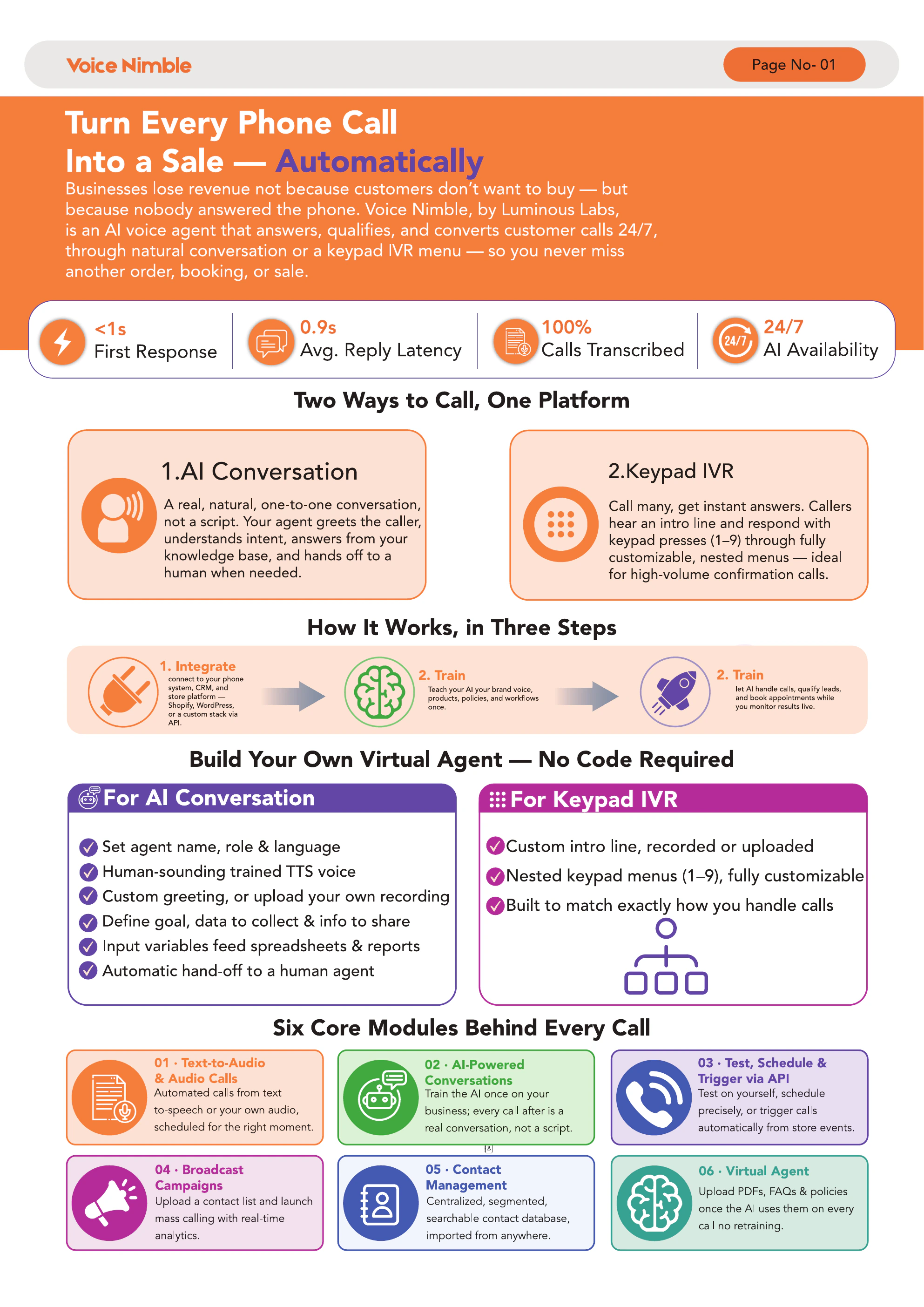
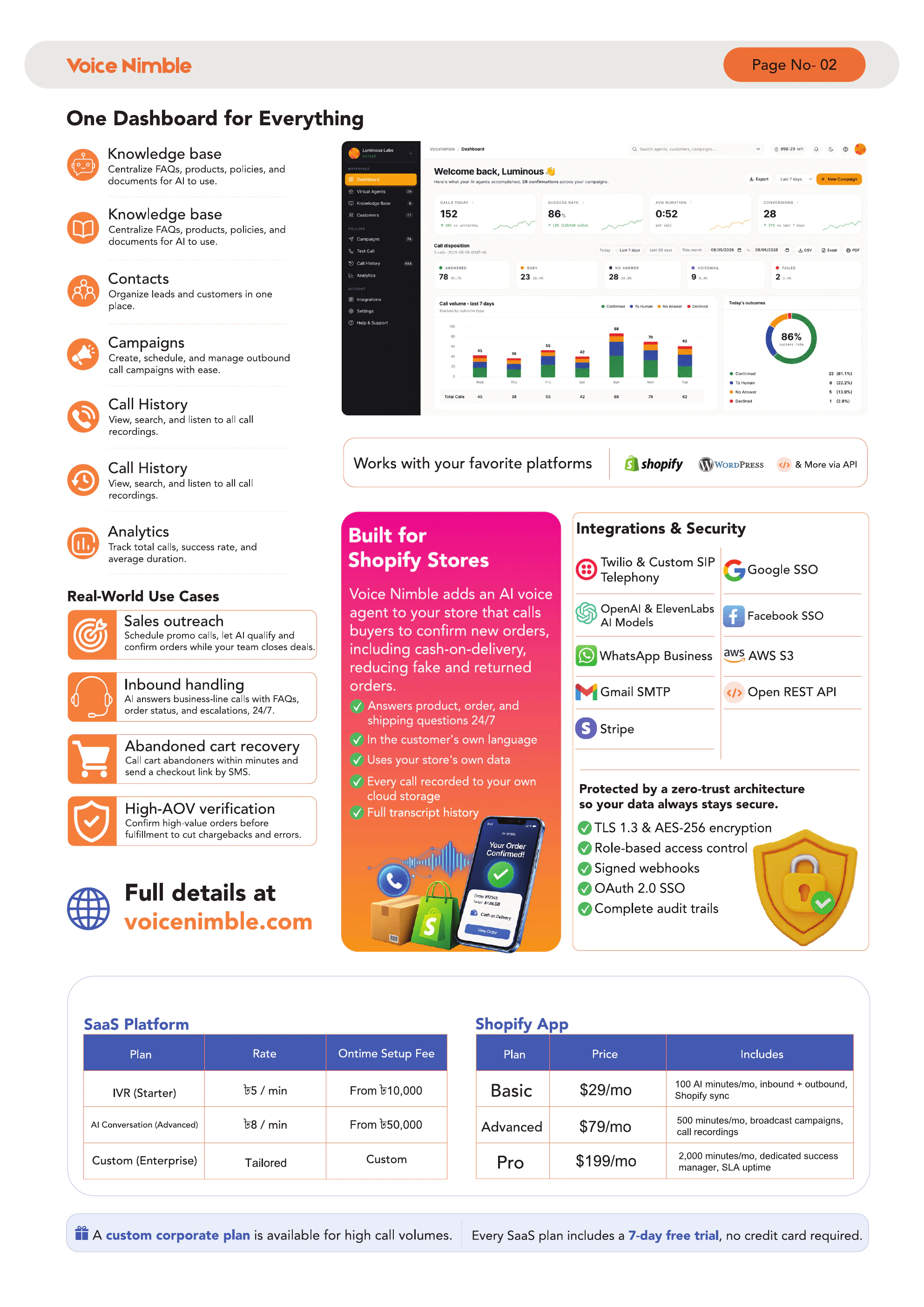
A knowledge base (KB) is a collection of documents the AI agent consults during calls — your return policy, FAQs, product specs, warranty terms, shipping details.
Without a KB, the AI makes things up (bad). With a KB, it cites your actual policies (good).
When to use it #
- You need the agent to quote exact return window days
- You have product-specific info that changes often
- You want consistent answers across all calls
- You have legal disclaimers that must be said a certain way
Creating a KB #
-
1
Go to Knowledge Base
-
2
Click New Knowledge Base
-
3
Name it — e.g. store_policies, product_specs
-
4
Save
Adding documents — 3 methods #
1. PDF upload. Drag and drop a PDF. The agent extracts text automatically. Scanned PDFs need OCR — if the text isn't selectable in a PDF reader, it won't work.
2. Text paste. Copy-paste content directly. Good for short FAQ answers.
3. URL scrape. Paste a URL (e.g. your /return-policy page). The agent fetches and indexes it. Re-run whenever you update the live page.
Organizing multiple KBs #
You can have multiple KBs — e.g. one for policies, one for products, one for compliance scripts. Attach the right KB to each agent:
- Customer support agent →
store_policiesKB - Sales agent →
product_specsKB
Attaching a KB to an agent #
Virtual Agent page → Knowledge Base dropdown → pick the KB.
Tips & best practices #
- One KB per topic. Don't dump everything into one 500-page KB — retrieval gets noisy
- Re-scrape URL-based docs after every policy change
- Write KB entries in Q&A format when possible — LLMs retrieve Q&A chunks best
- Keep individual entries under 500 words
Troubleshooting #
| Problem | Fix |
|---|---|
| Agent ignores the KB | Confirm it\'s attached to the right Virtual Agent |
| Agent quotes wrong policy | You probably have conflicting info across multiple docs — delete duplicates |
| PDF upload returns empty | PDF is scanned (image-only). Convert to searchable PDF first. |