What it is #
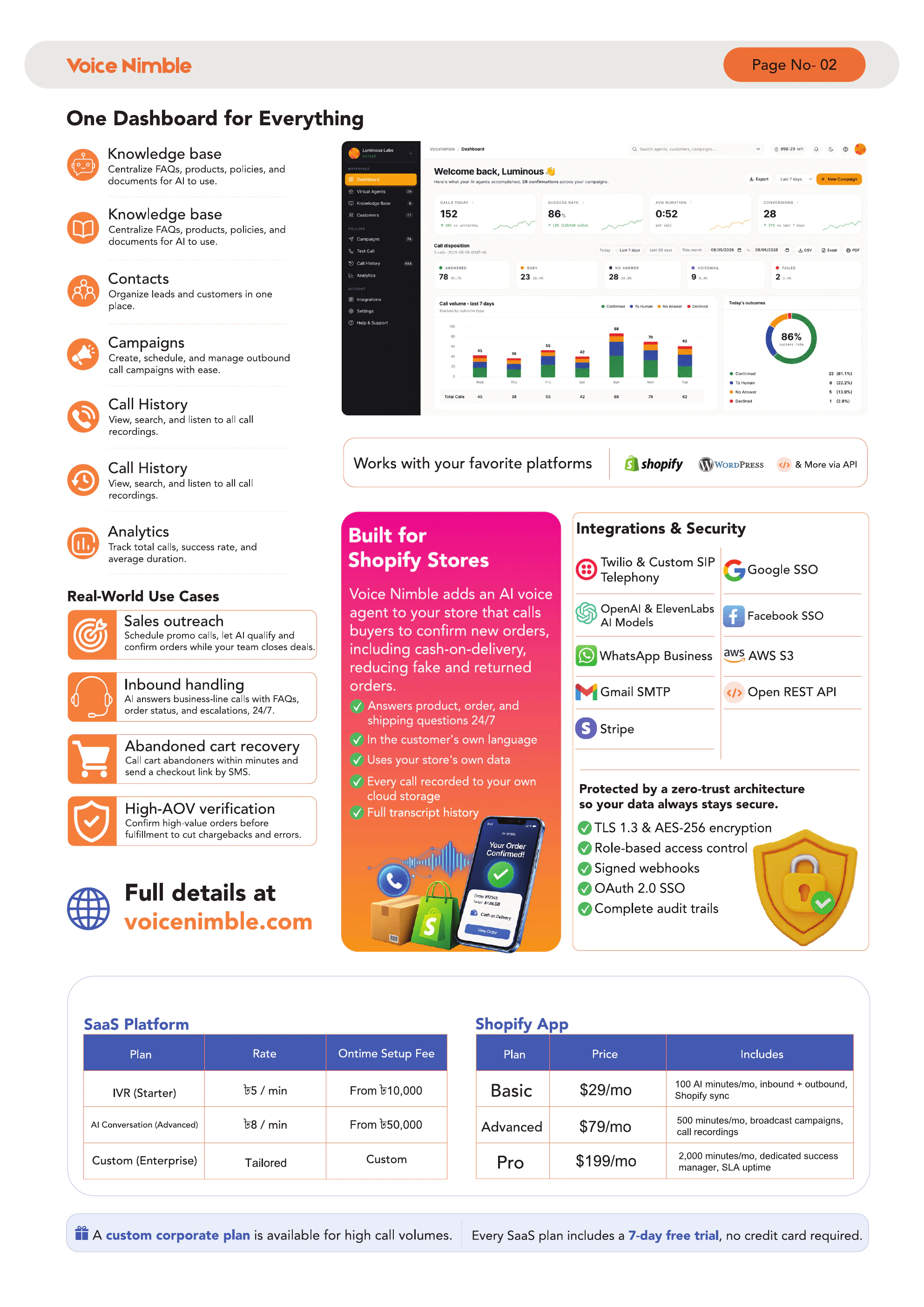
Contacts are non-Shopify people you want to call — leads, prospects, wholesale buyers, event registrants, etc. They live alongside your Shopify customers in Voice Nimble.
Creating contacts individually #
-
1
Go to Contacts → Add contact
-
2
Fill in: Name, Phone, Email (optional), Tags (optional)
-
3
Save
CSV import format #
The fastest way to add hundreds at once.
name,phone,email,tags
John Doe,+8801234567890,john@example.com,VIP;New
Jane Smith,+14155550123,jane@example.com,Prospect
Maria Lopez,+34612345678,,Lead
Rules:
nameandphoneare requiredphonemust be in E.164 format (+then country code + number, no spaces or dashes)emailis optionaltagsare separated by semicolons (;) — do not use commas inside the tags field
Importing #
-
1
Go to Contacts → Import CSV
-
2
Choose your file
-
3
Review the preview
-
4
Click Import
Duplicates #
Contacts are added immediately. Duplicates (same phone) are skipped.
Tagging for segmentation #
Tags let you build audience segments:
VIPfor high-value leadsEvent-2026-Aprilfor event registrantsProspect-ColdvsProspect-Warm
Use tags to filter audiences inside broadcast campaigns.
Tips & best practices #
- Always include country code in phone numbers — missing codes cause silent failures
- Use E.164 format consistently:
+14155550123not(415) 555-0123 - Keep tags short and systematic — they're not free-form notes
Troubleshooting #
| Problem | Fix |
|---|---|
| Import fails | Check the CSV header row matches exactly: name,phone,email,tags |
| Some rows skipped | Rows missing name or phone are silently dropped — check the preview |
| Calls fail to contacts | Phone likely not in E.164 — re-import with corrected format |